
68
Building an efficient remote workspace usually starts with an undeniable cable problem. The modern hybrid worker rarely balances just one computer anymore; most desks host a corporate laptop locked down by enterprise IT alongside a custom-built desktop PC, a personal MacBook, or a second workstation. Trying to run both systems through the same high-end monitors, mechanical keyboard, webcam, and audio gear leads straight into a logistical bottleneck.
At this crossroads, desk setups generally diverge down two paths: the docking station and the KVM switch. While both devices consolidate cables and interface with external displays, they solve fundamentally different engineering problems. Choosing the wrong one results in wasted budget, endless cable swapping, or frustrating display dropouts. Understanding how each device handles data, power, and video signals is the only reliable way to identify which piece of hardware belongs on your desk.
Deconstructing the Docking Station: The Single-Cable Port Multiplier
A docking station is designed to expand the input/output capabilities of a single computer. Built around high-throughput bus architectures like Thunderbolt 4, Thunderbolt 3, or USB4, a modern dock acts as an external motherboard extension. With one cable plugged into your laptop, the dock distributes power, drives multiple external displays, routes gigabit Ethernet, and supplies multiple USB ports for accessories.
The primary appeal of a docking station is frictionless mobility. When you need to leave your desk for a coffee shop session or an on-site meeting, you unplug a single cable. When you return, plugging that single cable back in instantly restores your full multi-monitor array, wired network connection, and desktop accessories while delivering up to 100 watts of charging power.
However, docking stations are fundamentally built for a one-host paradigm. Standard docks cannot intelligently bridge two active systems. If you want to use the same dock with both your corporate ThinkPad and your personal desktop, you have to physically unplug the host cable from one machine and insert it into the other. For a desktop PC, this often fails entirely, as many desktop motherboards lack the Thunderbolt or USB-C DisplayPort Alt Mode capabilities required to accept a single-cable dock input.
Demystifying the KVM Switch: The Multi-System Traffic Controller
KVM stands for Keyboard, Video, and Mouse. Unlike a dock, which focuses on port expansion for one system, a KVM switch is a hardware arbiter designed specifically to share a single console environment across two or more computers simultaneously.
Inside a KVM switch sits a multiplexer that routes signals between multiple host inputs and a single set of console outputs. You plug your primary monitors, keyboard, mouse, and audio gear directly into the KVM. You then run separate sets of display and USB cables from the KVM to Machine A and Machine B. At the tap of a physical button, the flick of a remote toggle, or a programmed keyboard hotkey, the KVM reroutes your entire peripheral ecosystem from one machine to the other in seconds.
The greatest operational advantage of a KVM is workflow concurrency. Both computers remain powered on, running their respective workloads, and connected to their networks. You can run a long compile or render on your personal workstation, flip the switch to answer a Slack message on your corporate machine, and toggle back without breaking stride.
The downside of traditional KVM hardware is cabling intensity. Because a KVM acts as a switcher rather than a single-cable hub, every connected computer must supply its own dedicated video feeds and USB data connections directly to the rear panel of the switch. Wiring two dual-monitor computers into a dual-monitor KVM requires at least four display cables, two USB upstream cables, and power connections, creating a dense wiring harness behind your desk.
Head-to-Head Comparison: Critical Performance Factors
Evaluating these devices requires looking beyond convenience and examining how they handle high-bandwidth signals and hardware protocols.
Display Bandwidth and Refresh Rates
Video processing is where docking stations and KVMs diverge dramatically in performance and compatibility.
Docking stations rely heavily on bandwidth allocation over a single physical pipe. Driving dual 4K monitors at 60Hz pushes the limits of standard USB-C DisplayPort Alt Mode, often forcing docks to use Display Stream Compression (DSC) or drop display refresh rates. On Windows, docks frequently use DisplayPort Multi-Stream Transport (MST) to drive multiple independent displays over one line. However, macOS famously does not support MST, meaning standard USB-C docks will merely mirror displays on Apple silicon rather than extending them unless you invest in a substantially more expensive Thunderbolt dock.
Dedicated KVM switches, by contrast, generally feature discrete video passthrough channels. A dual-DisplayPort 1.4 or HDMI 2.1 KVM provides dedicated, isolated pathways for each monitor feed directly from each machine’s graphics card. This makes quality KVMs vastly superior for high-refresh-rate gaming, ultrawide panels, and color-accurate creative work. If you run a 4K display at 120Hz or 144Hz with variable refresh rate technologies like FreeSync or G-Sync, a discrete KVM switch will pass that signal untouched, whereas most productivity docks will throttle the refresh rate or disable sync features entirely.
Power Delivery and Cable Management
Docking stations dominate the category of clean integration. Modern docks incorporate robust USB Power Delivery (USB-PD), supplying between 65W and 100W directly to host laptops. This eliminates the need to pull the proprietary power brick out of your travel bag every time you sit down at your desk.
Traditional KVM switches rarely supply host charging. They are typically powered by low-wattage DC adapters designed strictly to energize internal switching logic and standard USB buses. If you connect two laptops to a classic KVM switch, both laptops still require their original chargers plugged into wall outlets.
Peripheral Latency and USB Handshakes
When you switch between computers, your operating systems must register that accessories have disconnected and reconnected. How gracefully your hardware handles this transition determines your daily sanity.
Basic KVM switches perform what is known as a physical USB disconnect and reconnect every time you hit the toggle. When you switch to Machine B, Machine A acts as though you yanked the keyboard and mouse out of the ports, dropping peripheral drivers and scrambling desktop application windows. Premium KVM switches solve this using EDID emulation and USB DDM (Dynamic Device Mapping). EDID emulation constantly feeds synthetic display identity data to the inactive machine, tricking it into believing the monitors are still connected. When you switch back, your open browser windows, spreadsheets, and chat panels remain perfectly positioned on the correct screens instead of collapsing into a messy pile on a single display.
Docking stations do not face the switching transition problem because they are static. However, docks frequently struggle with high-polling-rate peripherals. Connecting an enthusiast gaming mouse or a specialized audio interface to a general-purpose dock hub can introduce micro-stutter, input lag, or audio crackle due to USB packet queuing across shared controller bandwidth.
The Hybrid Approach: Combining Both Technologies
For many remote professionals, neither a standalone dock nor a standalone KVM offers a complete solution. The common scenario involves a thin-and-light work laptop with limited ports alongside a robust desktop gaming PC packed with discrete GPU outputs.
Connecting the desktop PC to a KVM is easy: run DisplayPort and USB cables straight from the back of the tower. Connecting the laptop to that same KVM is difficult because the laptop lacks two individual display outputs and multiple full-sized USB ports.
The most elegant high-performance configuration often pairs a docking station with a KVM switch:
You connect your work laptop to a standard USB-C or Thunderbolt docking station via a single cable. That dock provides the laptop with power, network, and port breakout. You then run the display outputs and a USB data cable from the dock into Input 1 of the KVM switch. Meanwhile, your personal desktop PC plugs directly into Input 2 of the KVM switch.
This hybrid architecture gives you the single-cable convenience of a docking station for your mobile machine, alongside the instantaneous, hardware-level switching power of a dedicated KVM.
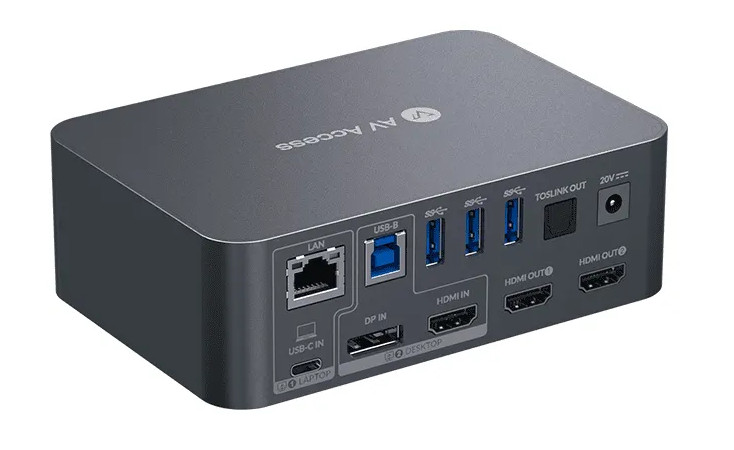
Alternatively, hardware manufacturers have recently begun producing hybrid KVM docks. These specialized units feature integrated USB-C docking electronics with full Power Delivery on one channel for a laptop, alongside traditional DisplayPort and USB-B inputs on the second channel for a desktop rig. While these all-in-one units command a premium price tag, they represent the cleanest single-box solution for modern hybrid workers.
Choosing the Right Hardware for Your Workflow
To determine the ideal setup, analyze your primary hardware profiles and daily working rhythms.
Choose a Docking Station If:
-
You rely on a single laptop as your only daily computing device.
-
You prioritize rapid desk departures where pulling one cable frees your computer instantly.
-
Your desk needs high port diversity, including front-facing audio jacks, SD card readers, and multiple legacy USB-A ports.
-
You do not own a secondary desktop PC and rarely need to access two running systems at the exact same moment.
Choose a KVM Switch If:
-
You run a personal desktop tower alongside a company-issued laptop every single day.
-
You require uncompromised display performance, such as 144Hz or higher refresh rates, HDR, and adaptive synchronization for gaming or high-end media creation.
-
You frequently toggle back and forth between machines throughout your shift to manage personal communications, system builds, or testing environments.
-
You are comfortable executing deliberate cable management to route multiple video and data paths behind your desk.
The Verdict
The choice between a KVM switch and a docking station is not a question of which hardware is superior in the abstract, but rather a question of topology. A docking station is an expansion tool meant to amplify what a single portable computer can do at a stationary desk. A KVM switch is an arbitration tool designed to let one set of human inputs control distinct computing environments.
If your primary goal is plugging in your company laptop with zero friction every morning, invest in a reliable Thunderbolt docking station. But if your daily reality involves sharing your monitors, keyboard, and mouse between two active systems without physically swapping cables, a hardware KVM switch remains the only real foundation for a clean, productive workspace.
